Start Here
Getting Started
Follow these steps to start integrating with BCBSND APIs and accelerate your development journey.
1
Sign in using Azure AD B2C Required
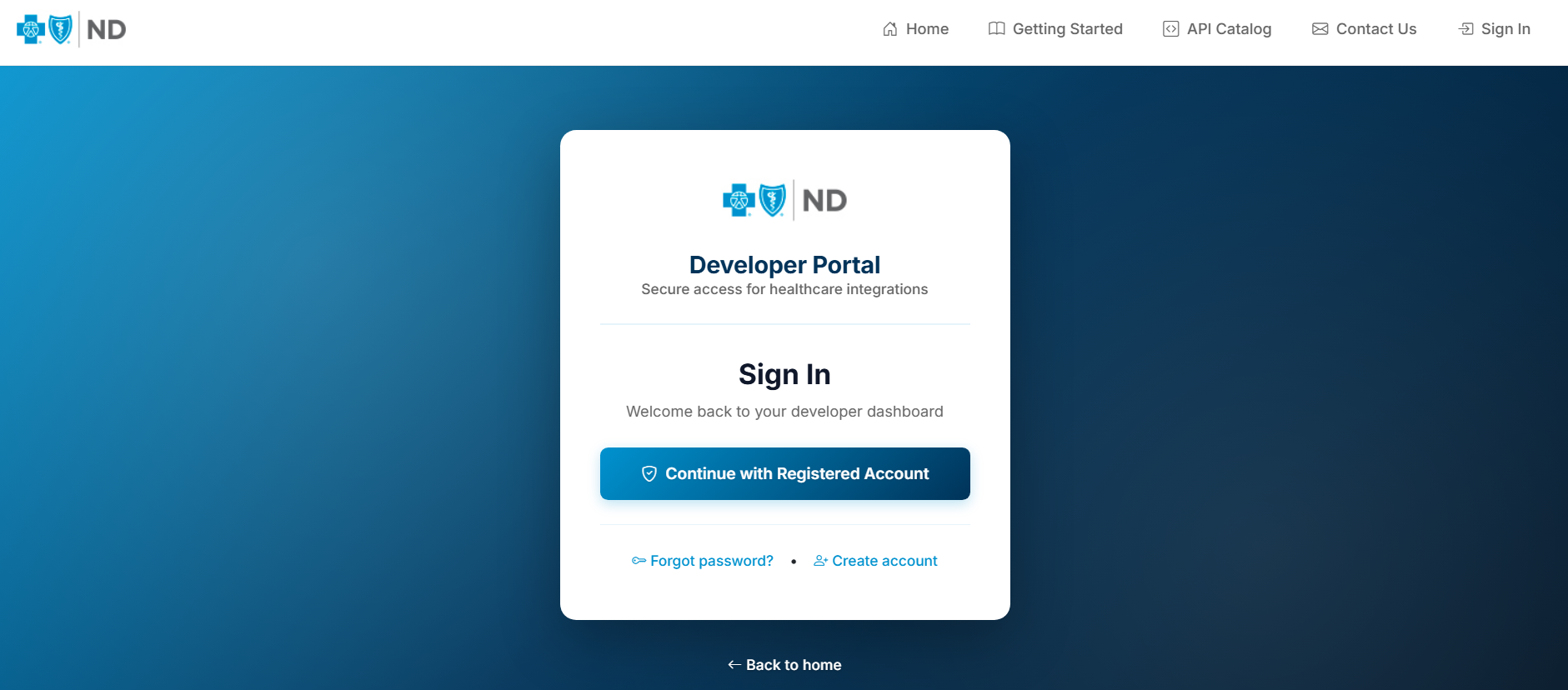
Click Sign In in the top navigation. You will be redirected to our secure Azure AD B2C sign-in experience.
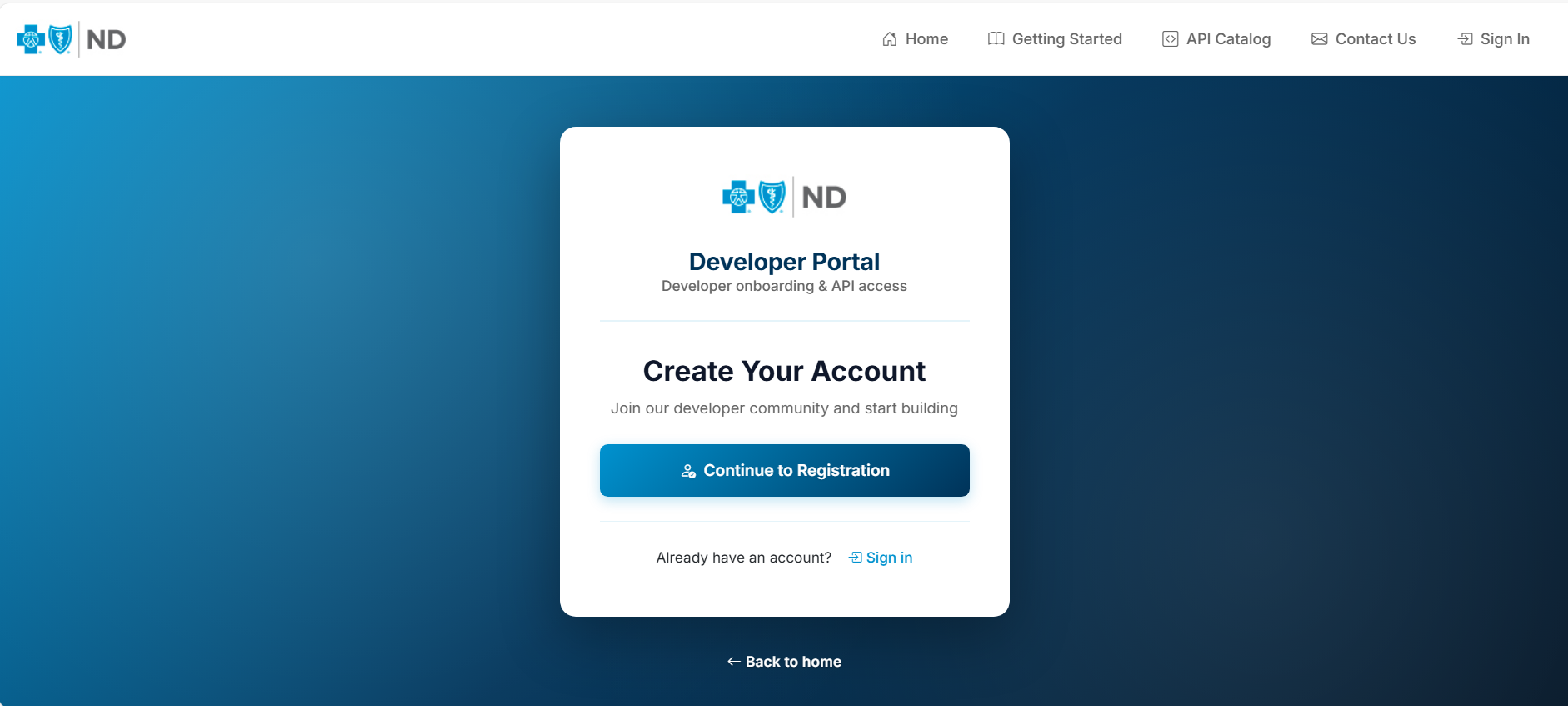
- If you are a new developer, choose Continue with Registered Account to create an account.
- Complete registration (and email verification if prompted).
- After sign-in, you will return to the Developer Portal automatically.
2
Browse the API Catalog (APIM Products) Next
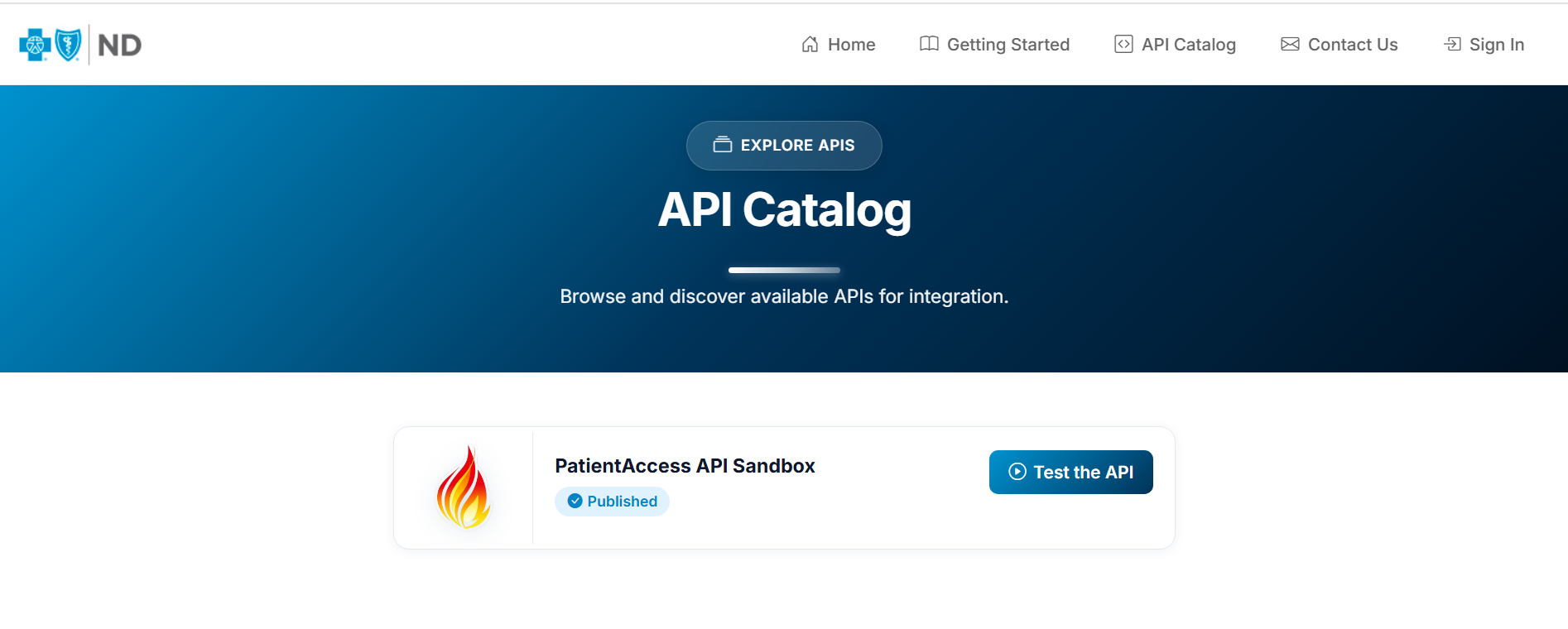
After signing in, open API Catalog. The catalog lists API products published from Azure API Management (APIM).
- Select a product to view its documentation and available APIs.
- Open the product’s Swagger view to see operations you can test.
3
Create an Application (Subscribe to a Product) Required
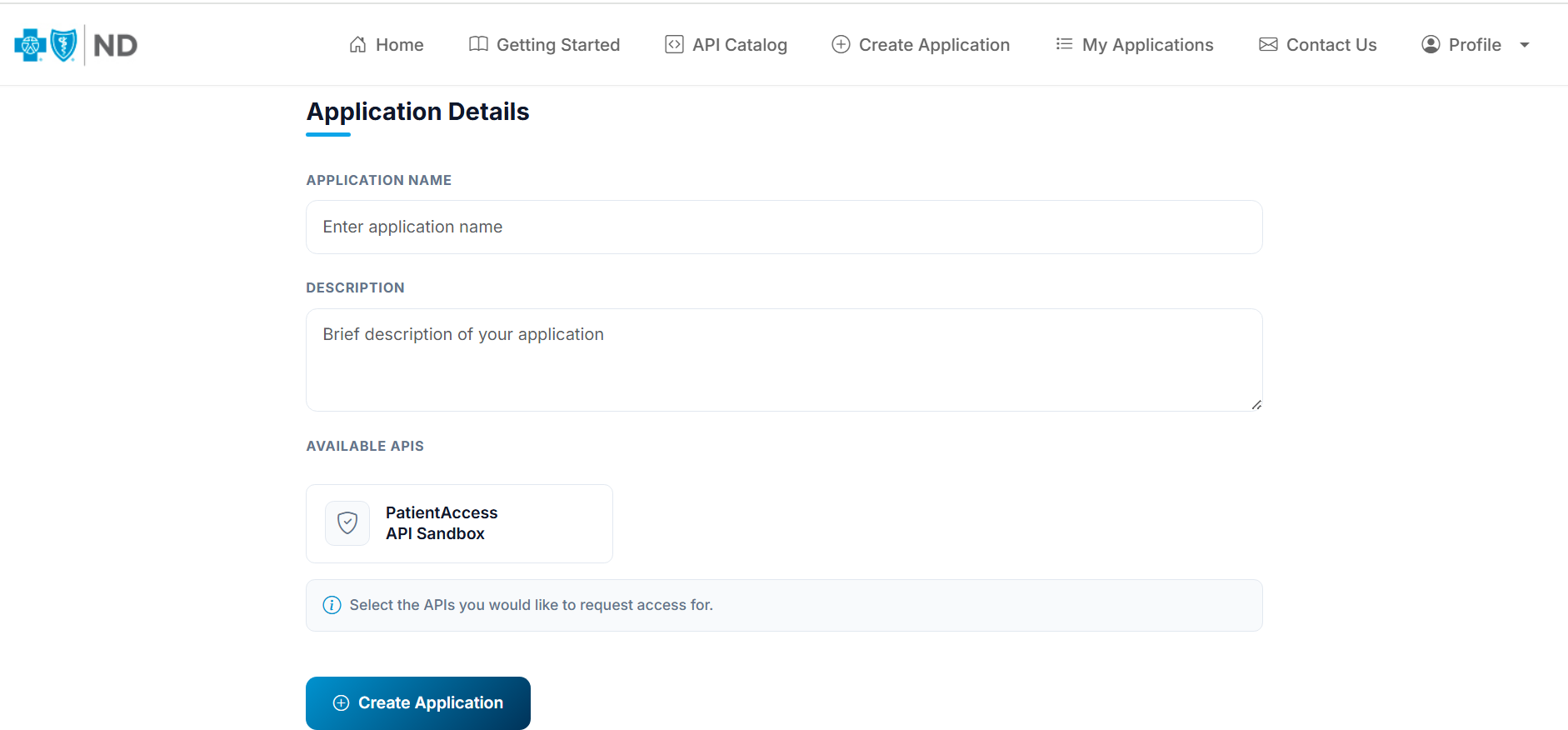
To test APIs in Swagger, you must register an application and subscribe it to an API product. Click Create Application in the top navigation.
- Enter your Application Name.
- Select the Available APIs you want to subscribe to.
- Click Create Application to finish registration.
4
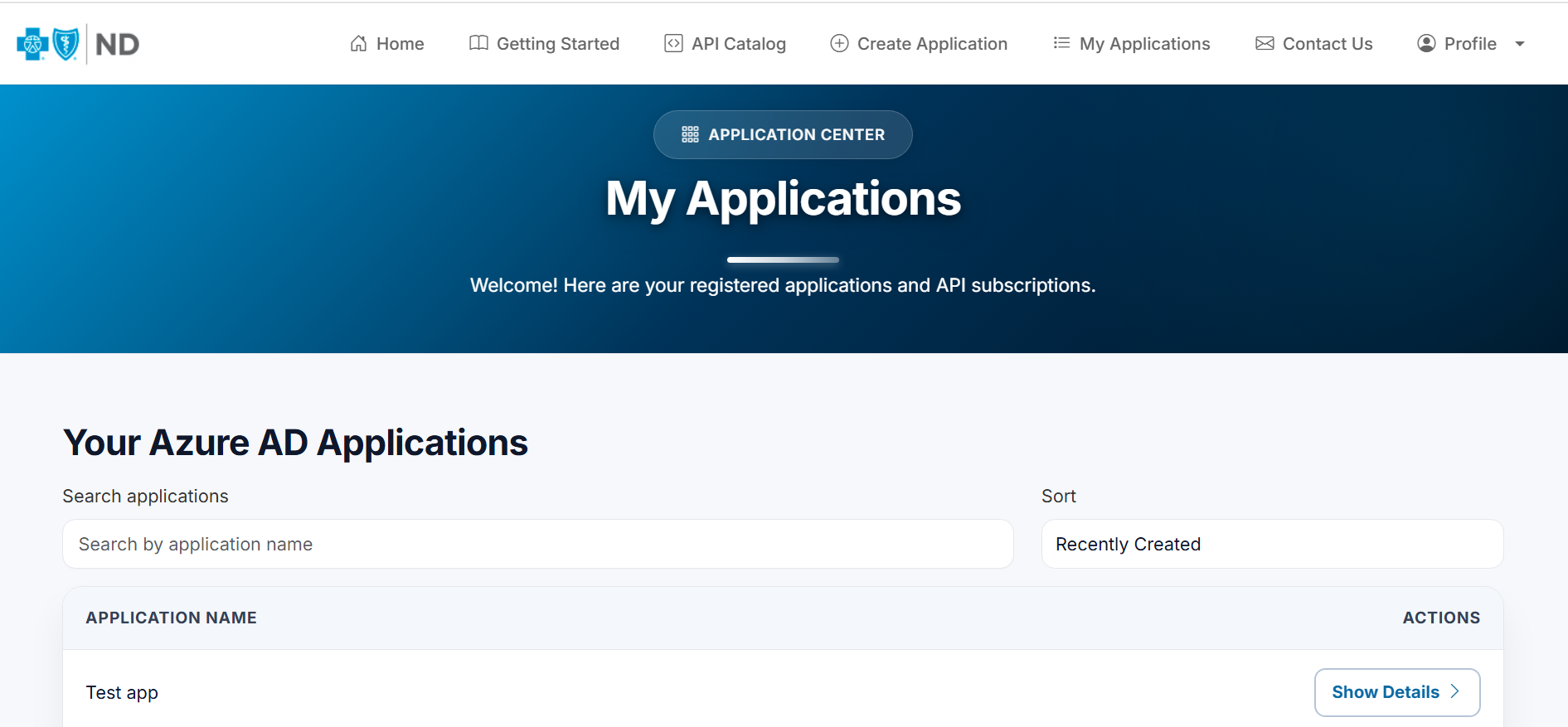
View your Application Keys (My Applications) Required
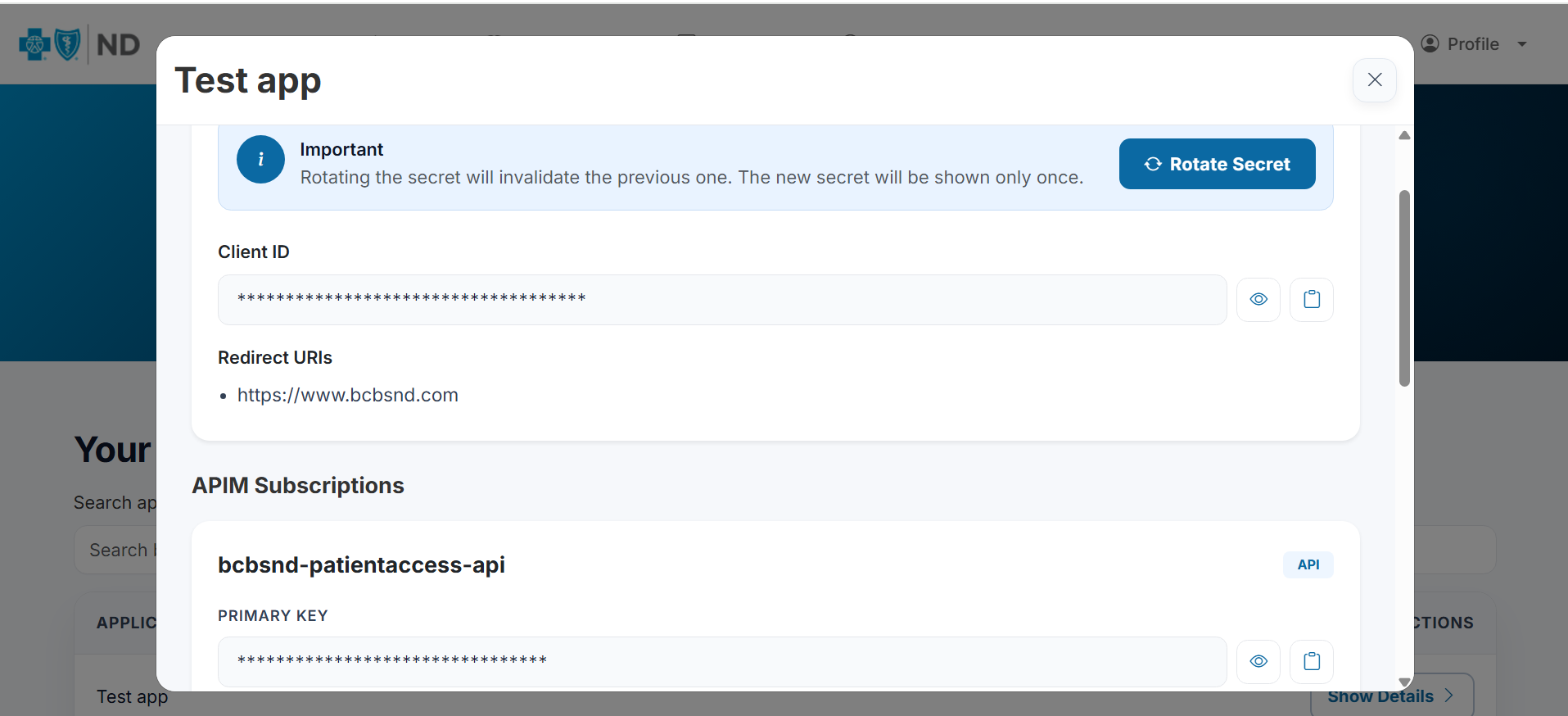
Go to My Applications to manage your registered apps. Open an application to view its credentials. You will see values such as:
- Client ID
- Primary Key and Secondary Key
- Subscription information (as applicable)
- Client Secret is not displayed by default for security; use Rotate Secret to generate a new one.
5
Authorize Swagger using
Authorize Swagger using Keyid Required
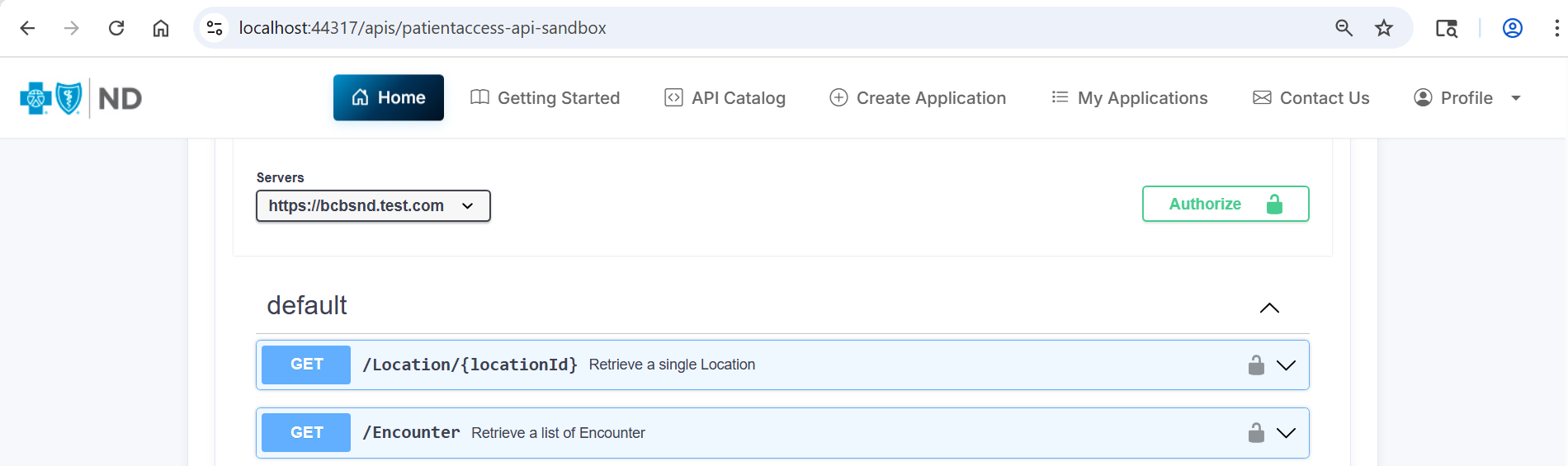
To test endpoints from Swagger, you must authorize requests using your application’s key. In the Swagger page for your selected product:
- Click Authorize.
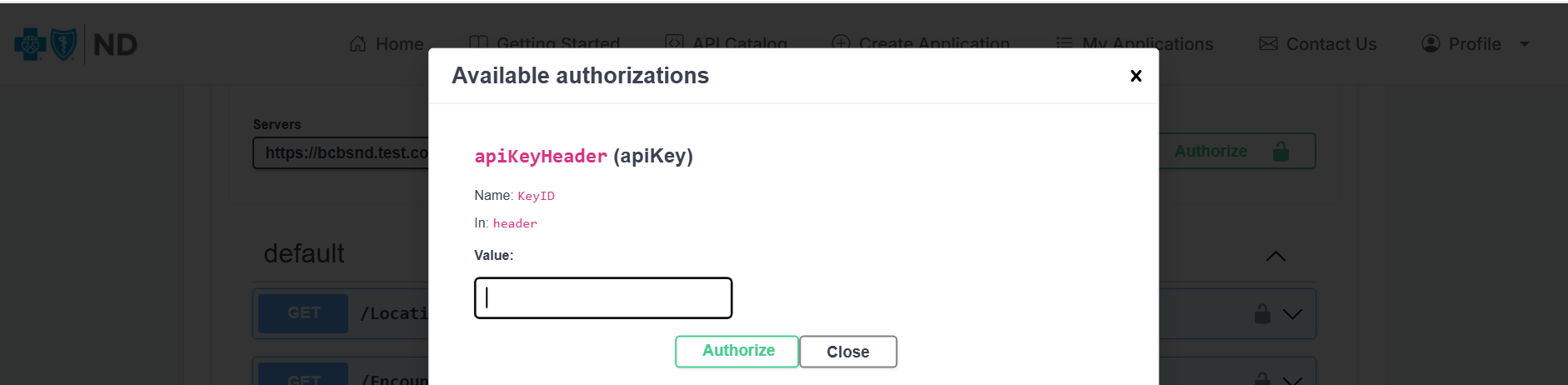
- Paste your Primary Key into the field.
- Click Authorize to apply.
Swagger Authorization
Header name:
Keyid
Value:
<Primary Key from My Applications>
6
Try an API (Swagger “Try it out”) Next
After authorizing, select any endpoint, click Try it out, provide inputs if needed, and click Execute to see the response.
7
Rotate Client Secret (if required) Optional
If you need a new client secret, open your application under My Applications and click Rotate Secret. Copy the newly generated secret and store it securely.
Security note: Client secrets should be stored securely (for example, in a vault) and never shared publicly.
Need help? Use the Contact Us page or reach out to the BCBSND Developer Support team.